HomeMac Bulk SMS Software › Bulk SMS software for Android mobile phone procedure

Bulk SMS software for Android mobile phone procedure

How to send bulk SMS simultaneously using android phone?

Bulk SMS software composes and sends unlimited text messages from Pc using android mobile phone.

Software Working Procedure : When you run the software for first time the initial screen (as shown in the figure below) will appear:

Android Bulk SMS

[This message screen] will be displayed on system screen in following cases:

  • When your Mobile Phone Device is not connected (or not properly connected) in your Computer.
  • Android™ phone software is not installed in your Computer.
  • ADB interface of your Android technology based mobile device is not available or properly installed in your Computer.

Note: Please make sure that the firmware of your Mobile device is up to date and "USB Debugging" option of your mobile device is enabled.

To enable the USB Debugging option in your Mobile Device, Go to:

Settings > Application > Development > USB Debugging

Messaging Procedure:

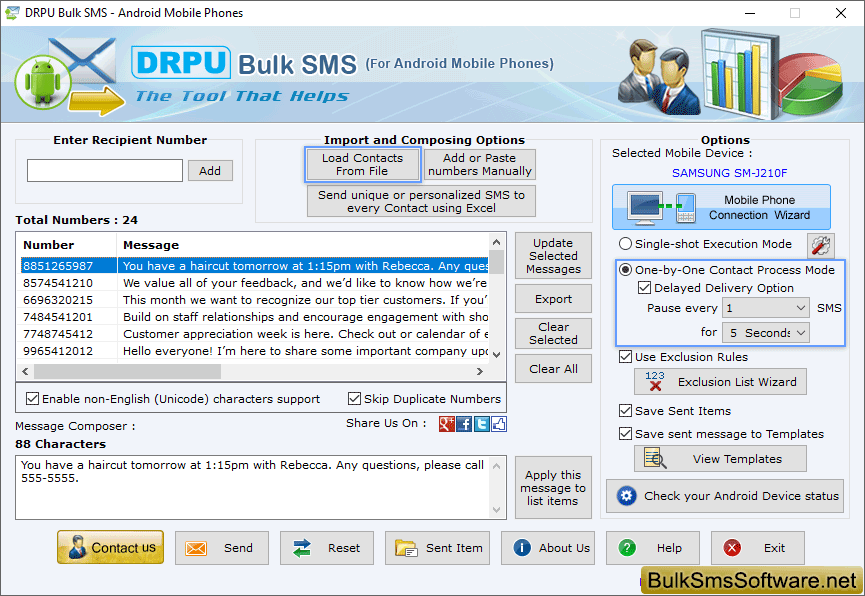
[This window] describes how to operate the DRPU Bulk SMS - Android Mobile Phones:

Step-1: Enter Recipient Phone Number (contact person number to whom you want to send sms).

Step-2: Click on the Add button.

OR

Load Recipient Number on clicking Load Contact File button to Load Contacts From File saved in Excel or txt file format.

Step-3: Recipient numbers will display on the Recipient Number List window.

Export: Click on 'Export' button to export contact list in Excel or txt file format.

Clear Selected: Select the numbers, you do not want to send message, and click 'Clear Selected' button.

Clear All: Click 'Clear All' button to delete the entire numbers.

You can update the entered number by double clicking on selected number from the recipient number list.

Step-4: Type the message you want to send in the Message Composer window.

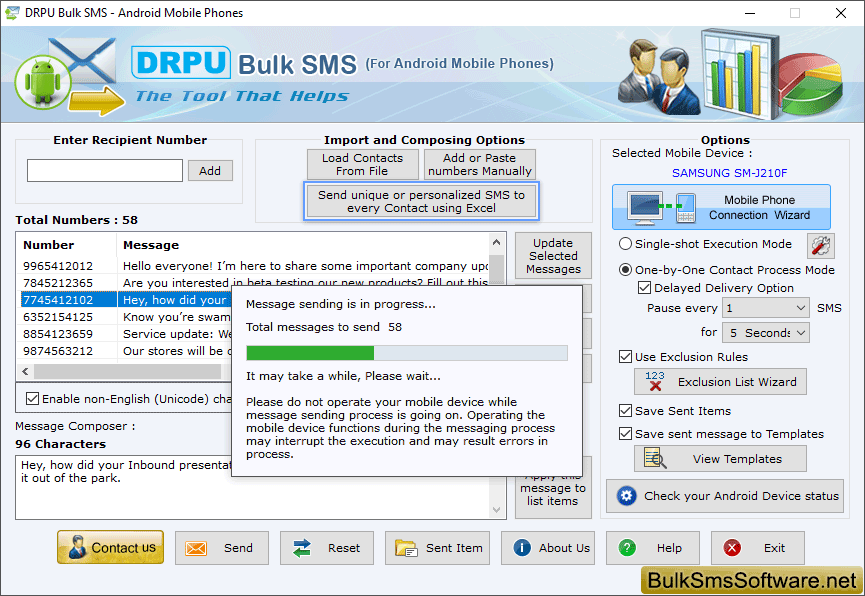
Step-5: Click on the 'Send' button to send sms as shown in [This figure]:

Note:

  • If you want to send message in non-English character, then select ‘Message contains non-English (Unicode) characters option’.
  • If you want to use Exclusion Rules then select the 'Exclusion Rules' option.
  • If you want the remove the number redundancy/duplicity then select 'Skip Duplicate Numbers' option.
  • If you want to save the sent items details then select the 'Save Sent Items' option.
  • If you want to save sent message to template then select the 'Save sent message to Template' option. Click on View Templates button to view templates message.
  • If you want to clear all fields after sending SMS then select the 'Clear all fields after sending SMS' option.
  • If you want to use the software with default settings then click 'Reset' button.

Copyright©bulksmssoftware.net